Documentation Deploy & operate
Backups & restore
Nightly and manual backups, downloads, restoring into any environment, and copies on your own S3 or SFTP storage.
How backups work
Every app has its own Backups menu. A backup holds the app's database and, in the ZIP format, its filestore (the uploaded files). CloudWady makes two kinds:
- Automated backups, taken every night for apps with Auto Backup on.
- Manual backups, taken when you press Backup.
A backup is stored on the app's server first. When your project has off-site storage, it is also copied there, and a restore can read it back from that copy (see Copies on your own storage).
Automatic backups
Turn nightly backups on or off per app: open the app, then Overview → Automation → Updates & Backups → Auto Backup. Auto Backup is on by default for production apps.
Nightly backups run once a day between 00:00 and 05:00 UTC.
How long backups are kept
Each backup card says how long it stays, in its Kept row.
| Backup | Kept |
|---|---|
| Automated (nightly) | While it is among the 5 newest nightly backups, then as its week's last backup for 3 more weeks. |
| Manual | 30 days from the day it was taken. |
| Off-site only | The storage's own retention applies (see Copies on your own storage). |
Taking a backup now
Press Backup in the app's header. The Create Backup dialog asks for a format, then Create starts it.
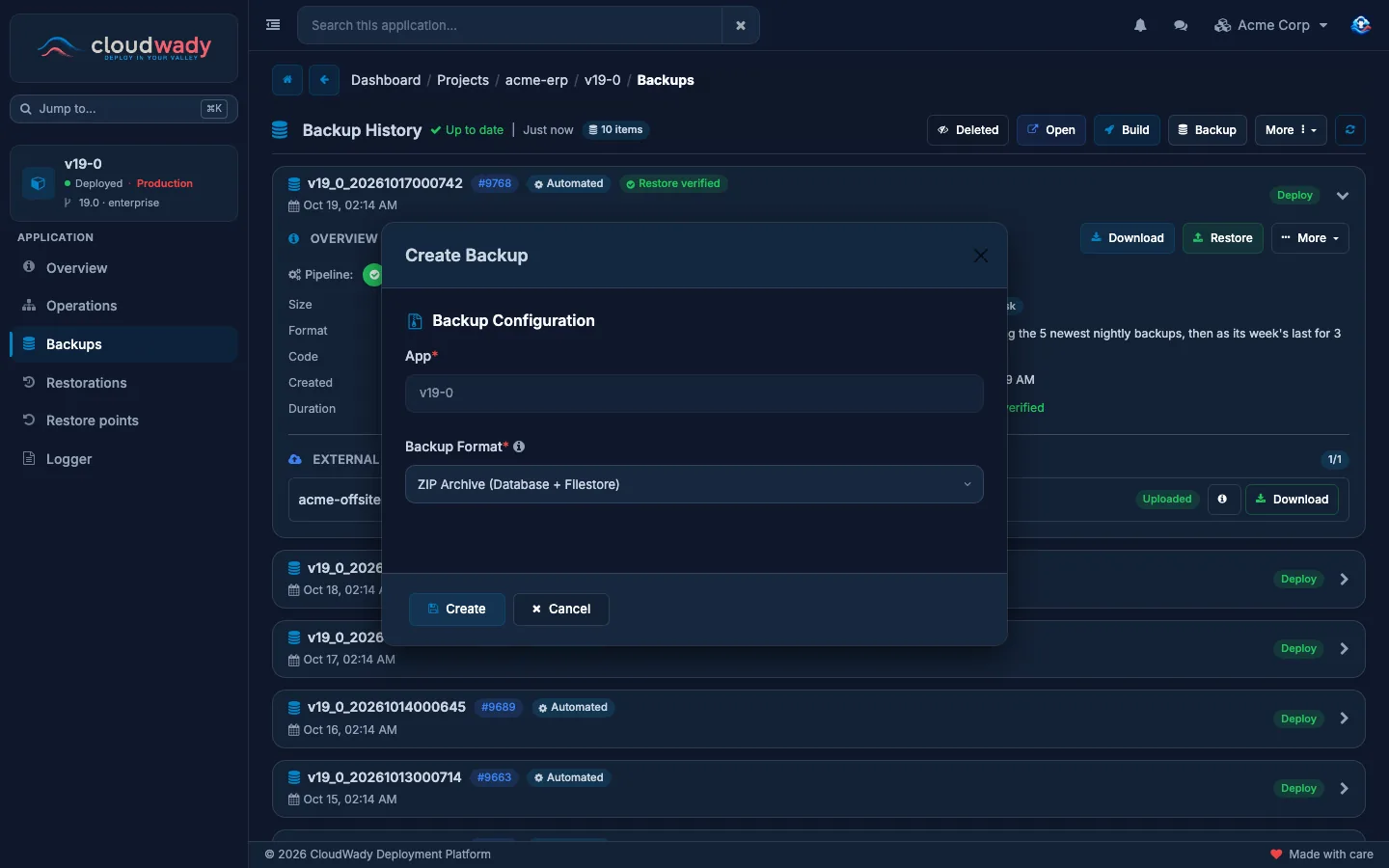
| Format | What it holds |
|---|---|
| ZIP Archive (Database + Filestore) | The database and every uploaded file. Use this one to move or fully restore an app. |
| Database Dump (No Filestore) | The database only, in PostgreSQL's custom format. |
| SQL File (Plain SQL) | The database only, as plain SQL. |
A backup that runs shows a Now row with its current step. Only one backup of an app runs at a time.
The backup list
The app's Backups menu lists its backups, newest first, as cards. Click a card to open it.
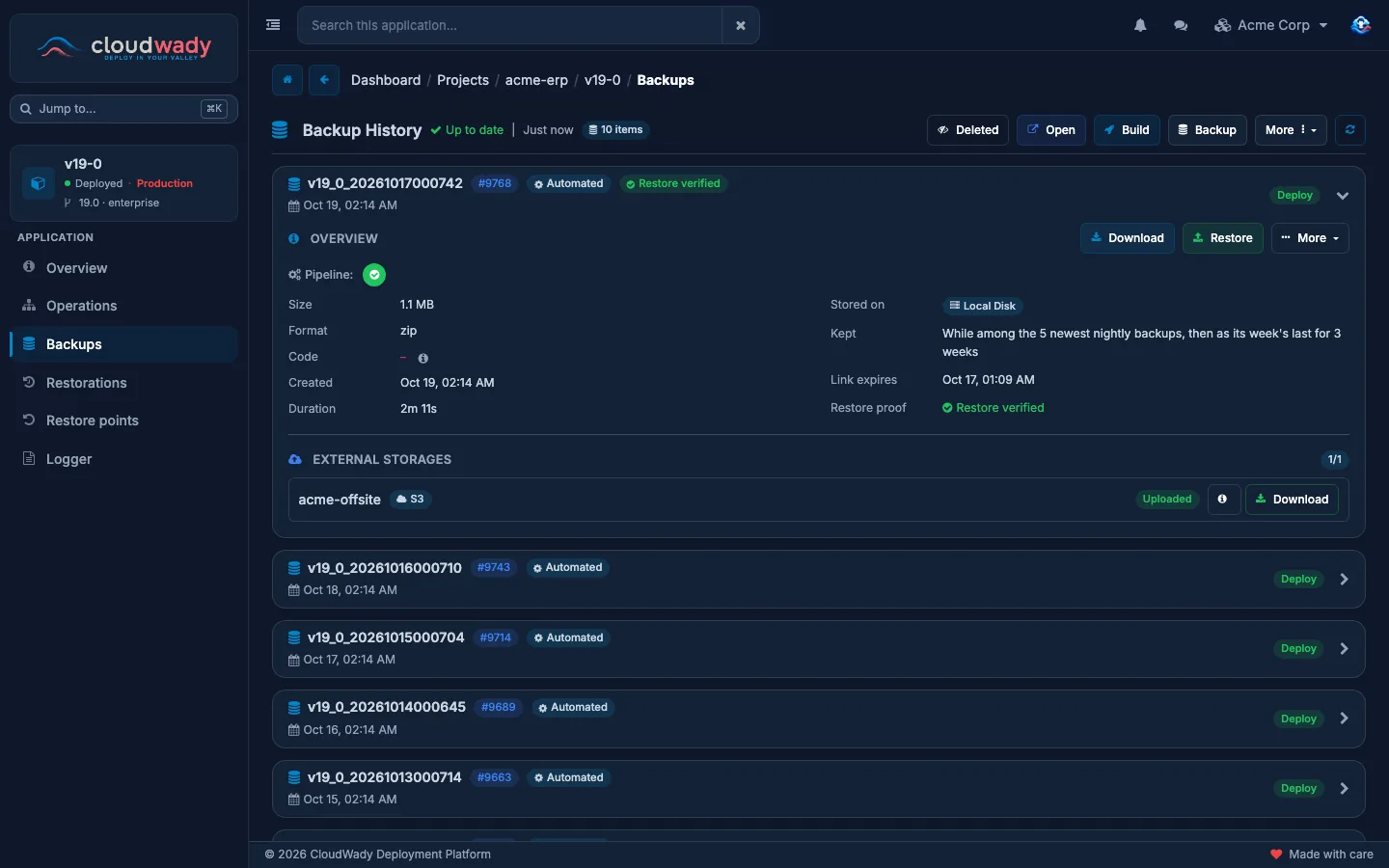
The card's title shows the backup's name and number, who took it (for a manual backup), and Automated or Manual. Inside:
| Row | What it tells you |
|---|---|
| Pipeline | The runs that made the backup. Hover one for its state. |
| Size, Format | The file's size and format. |
| Code | The repository and commit the app was running when the backup was taken. The info icon lists every repository. |
| Created, Duration | When it was taken and how long it took. |
| Stored on | Local Disk or Cloud Volume on the server, or Off-site only when the file is no longer on the server and a restore reads it from your storage. |
| Kept | How long it stays (see Automatic backups). |
| Link expires | When the current download link stops working. |
| Restore proof | Whether a restore of this backup has been checked: Not tested, Restore verifying, Restore verified, Restore not verified or Restore failed. |
Deleted, in the header, also shows deleted and canceled backups.
Actions on a backup
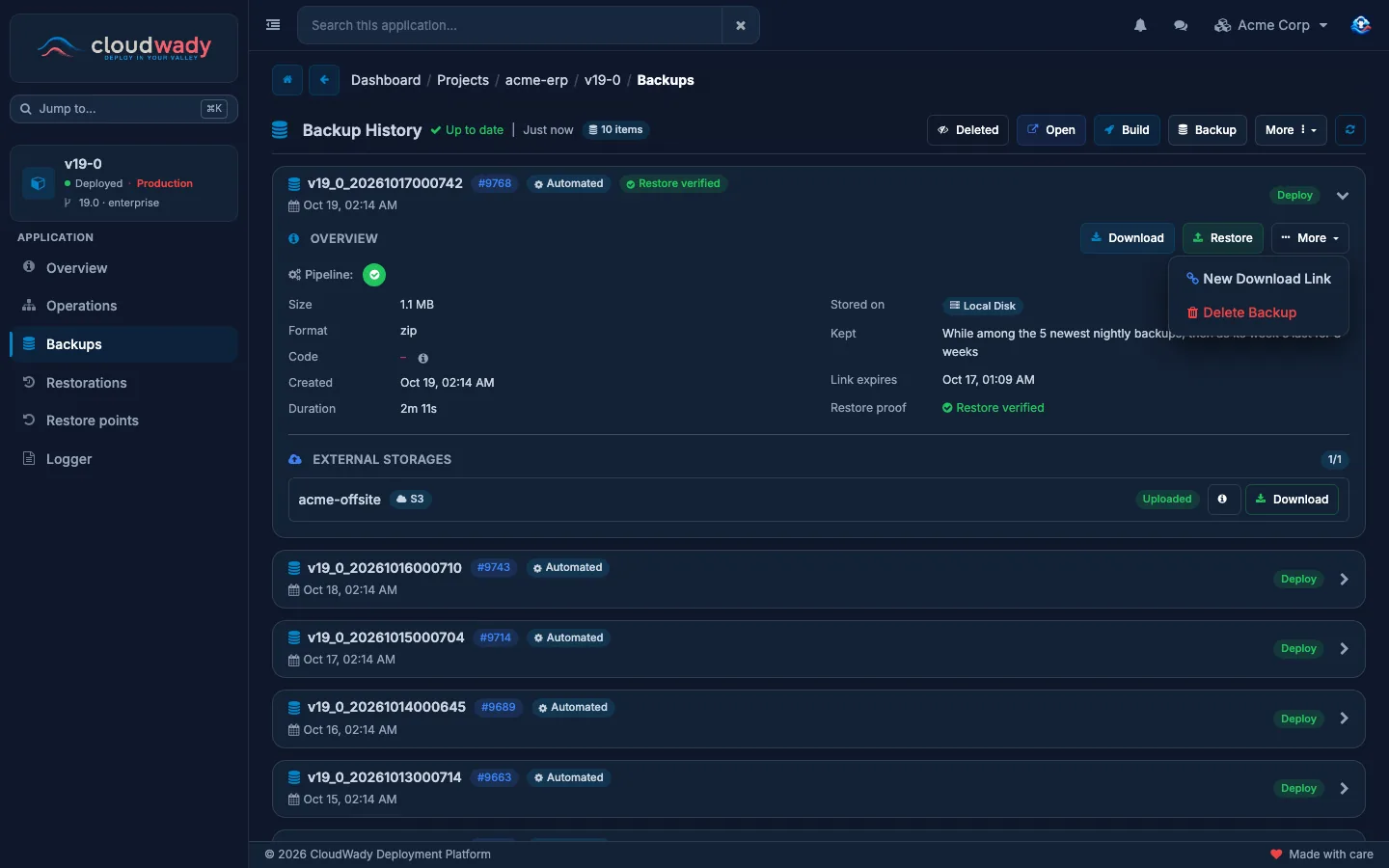
| Action | When | What it does |
|---|---|---|
| Download | The backup is complete and its file is on the server | Downloads the file. |
| Restore | The backup is complete | Opens the restore dialog (see Restoring a backup). |
| More → New Download Link | The file is on the server | Makes a new link, valid for one hour. A link made before keeps working until it expires. |
| More → Delete Backup | The backup is not running | Deletes the backup (see below). |
| Retry / Cancel | The backup failed, or is still running | Runs it again, or stops it. |
Deleting a backup
Outside production, one confirmation is enough. A production backup asks twice: a warning first, then you type DELETE. Deleting cannot be undone. A backup that is off-site only goes with its last off-site copy.
Restoring a backup
Press Restore on a completed backup. The app must be deployed.
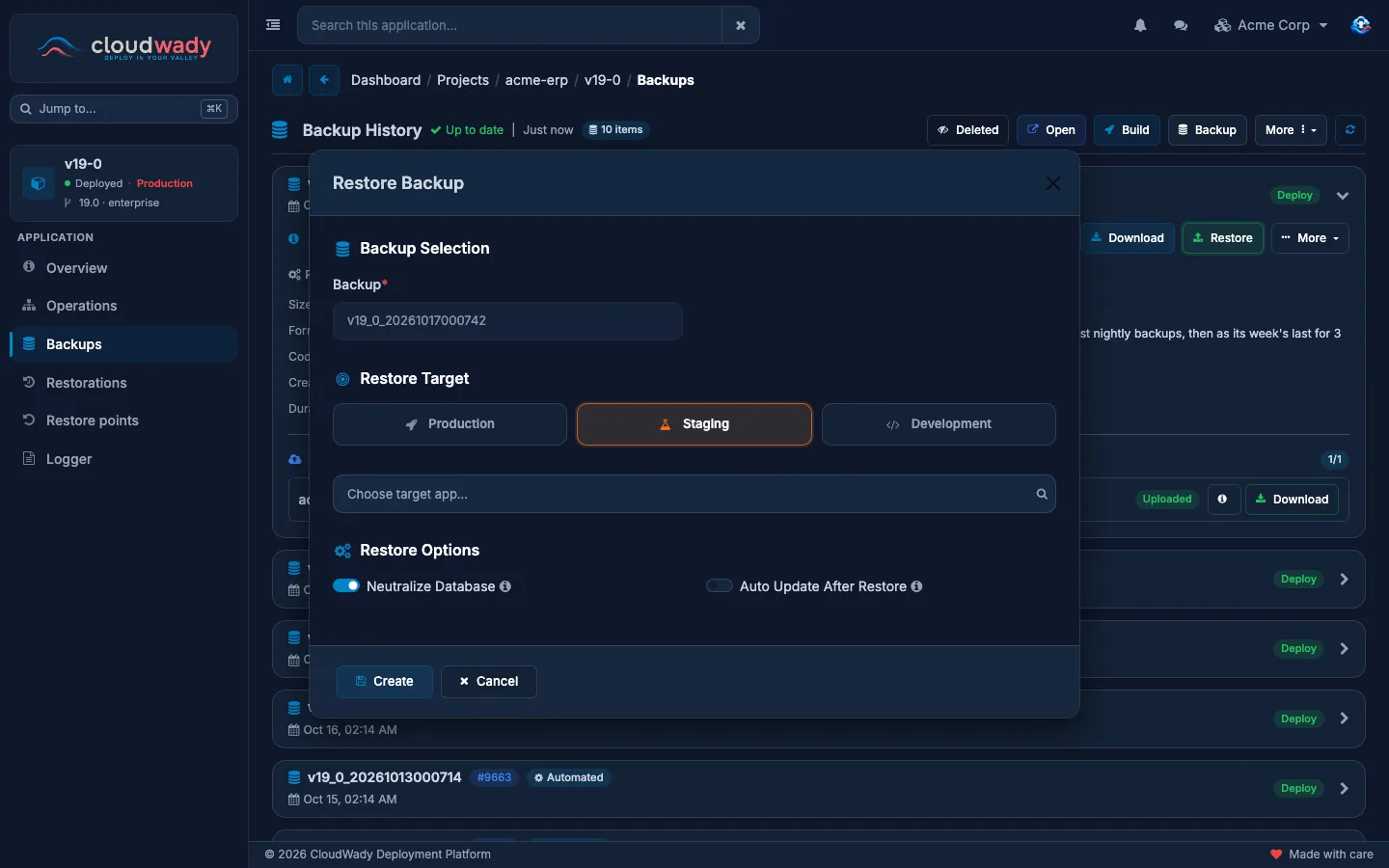
- Backup Selection: the backup you pressed Restore on.
- Restore Target: pick Production, Staging or Development, then the app to restore into. Only deployed apps of the same project and the same Odoo version are offered. An environment you may not restore into is greyed out.
- Restore Options:
- Neutralize Database (on by default outside production) turns off what reaches the outside world after the restore, such as outgoing email and scheduled actions, the way Odoo's neutralize does. A restore into production is never neutralized. Only admins can change this switch.
- Auto Update After Restore updates the app's modules once the restore is done.
- Press Create.
Restoring into production asks twice: a warning, then you type RESTORE.
A Database Dump or SQL backup holds no filestore, so restoring it changes the database only.
Restorations
The app's Restorations menu lists every restore that involved the app:
- Restored FROM cards (incoming): a backup was restored into this app.
- Restored TO cards (outgoing): one of this app's backups was restored into another app.
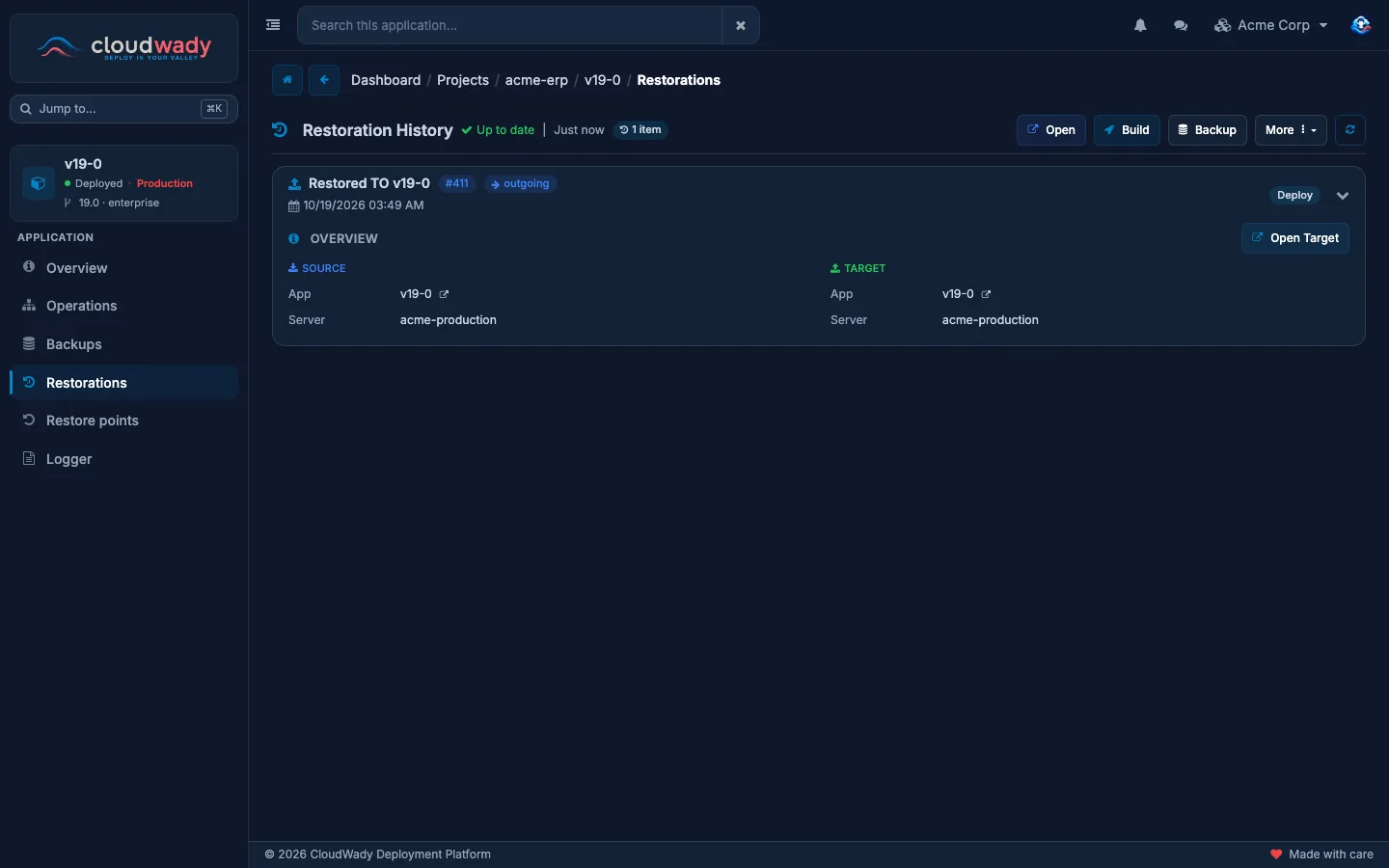
Each card shows the source and target app and server, the duration, and while it runs, a Now row with the current step. A badge marks a restore that was neutralized (Neutralize DB) or that moved data between servers (Cross Server). Retry runs a failed restore again, Cancel stops one that has not finished, and Open Target opens the restored app.
When a restore is verified, the backup's Restore proof becomes Restore verified.
Every backup in one place
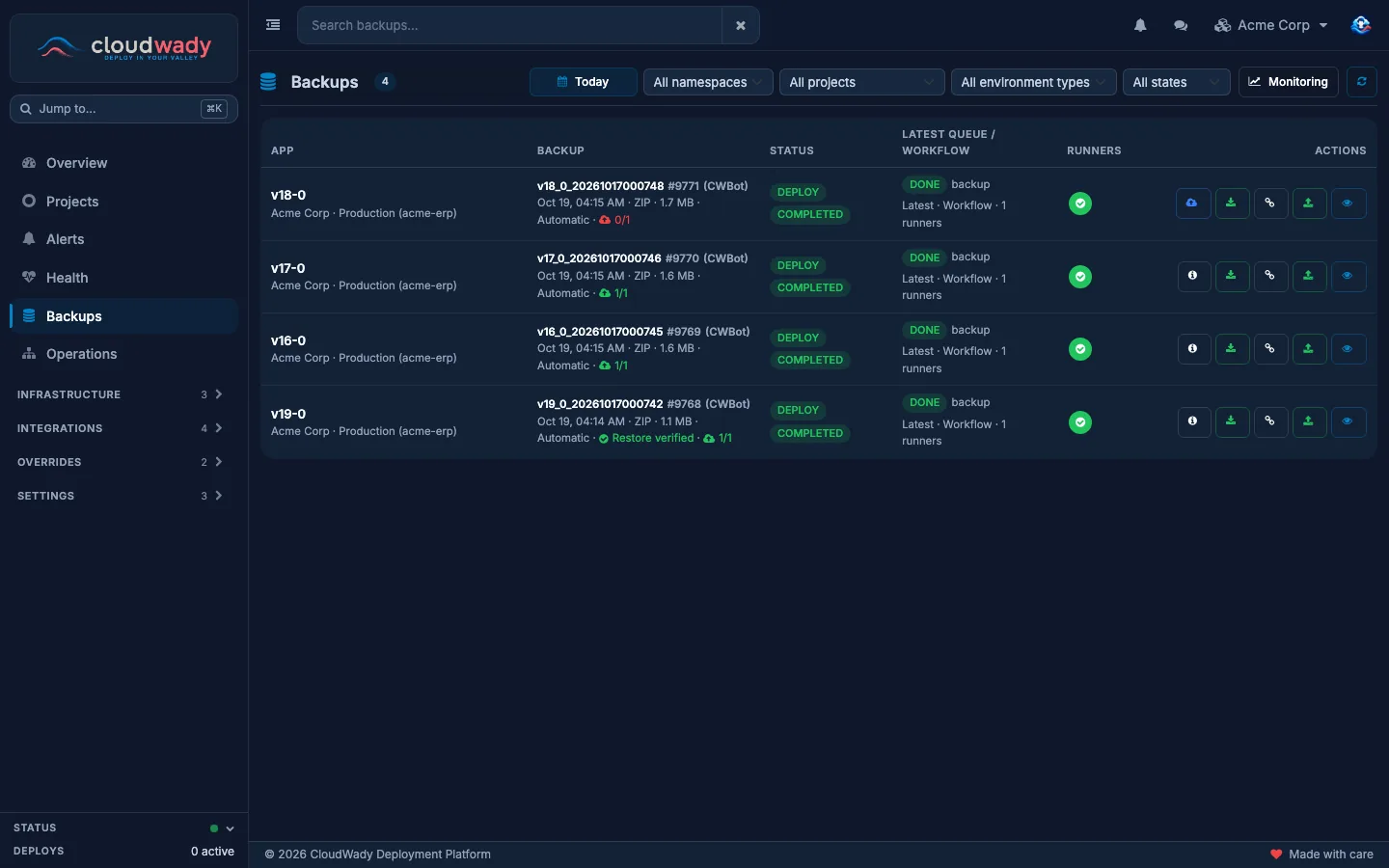
The sidebar's Backups lists the latest backups of every app in your workspace. Filter it by date (Today), namespace, project, environment type and state. Each row offers download, a new link, restore and details. Monitoring opens Health → Backups, which shows which apps are behind on their backups.
Copies on your own storage
Backups on the app's server are lost with the server. Off-site storage keeps a copy elsewhere: production backups are copied to every storage your project registers, and other environments' backups once they outgrow their server. A restore reads the copy back when the file is no longer on the server.
Add a storage
Open Infrastructure → Storage.
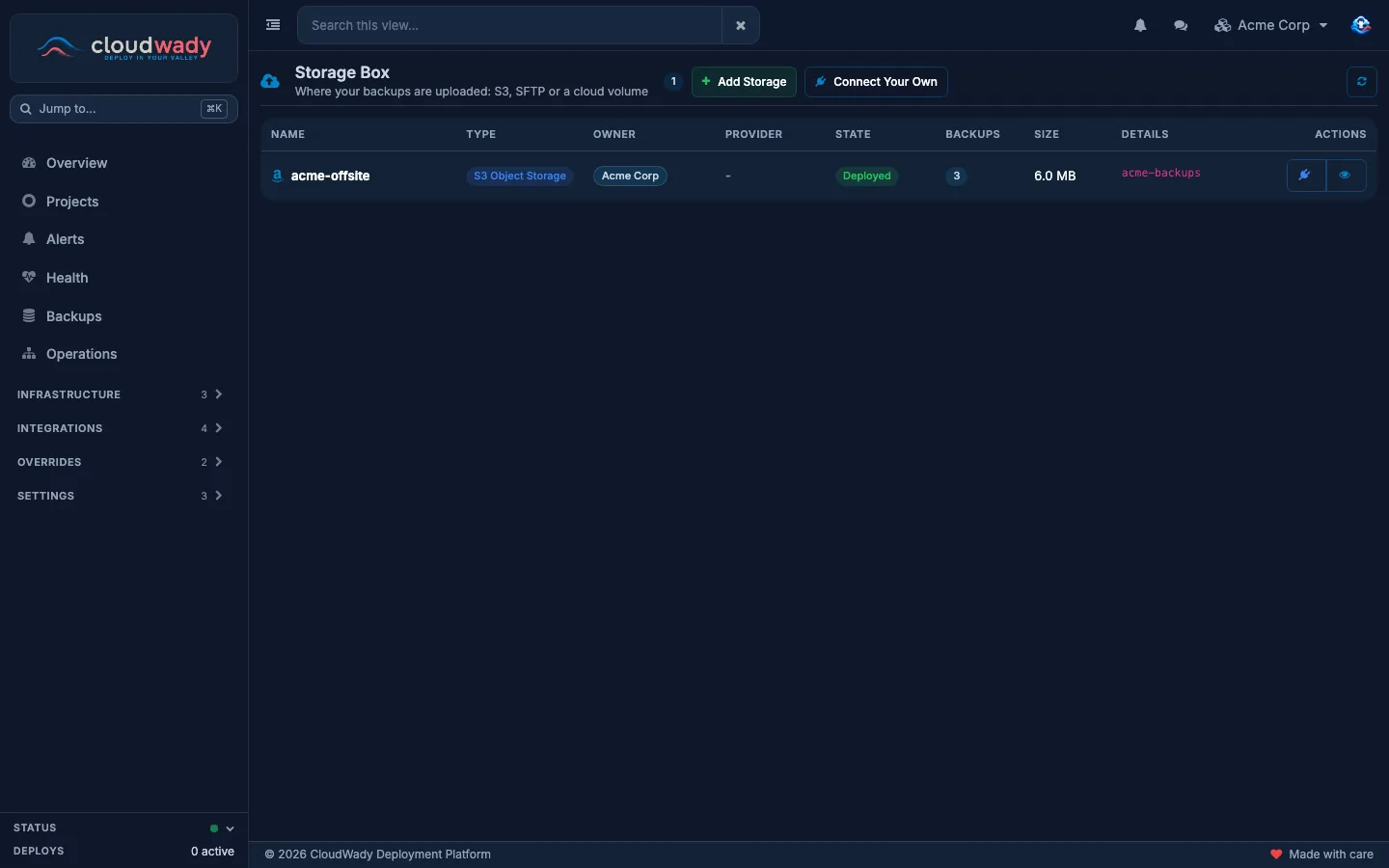
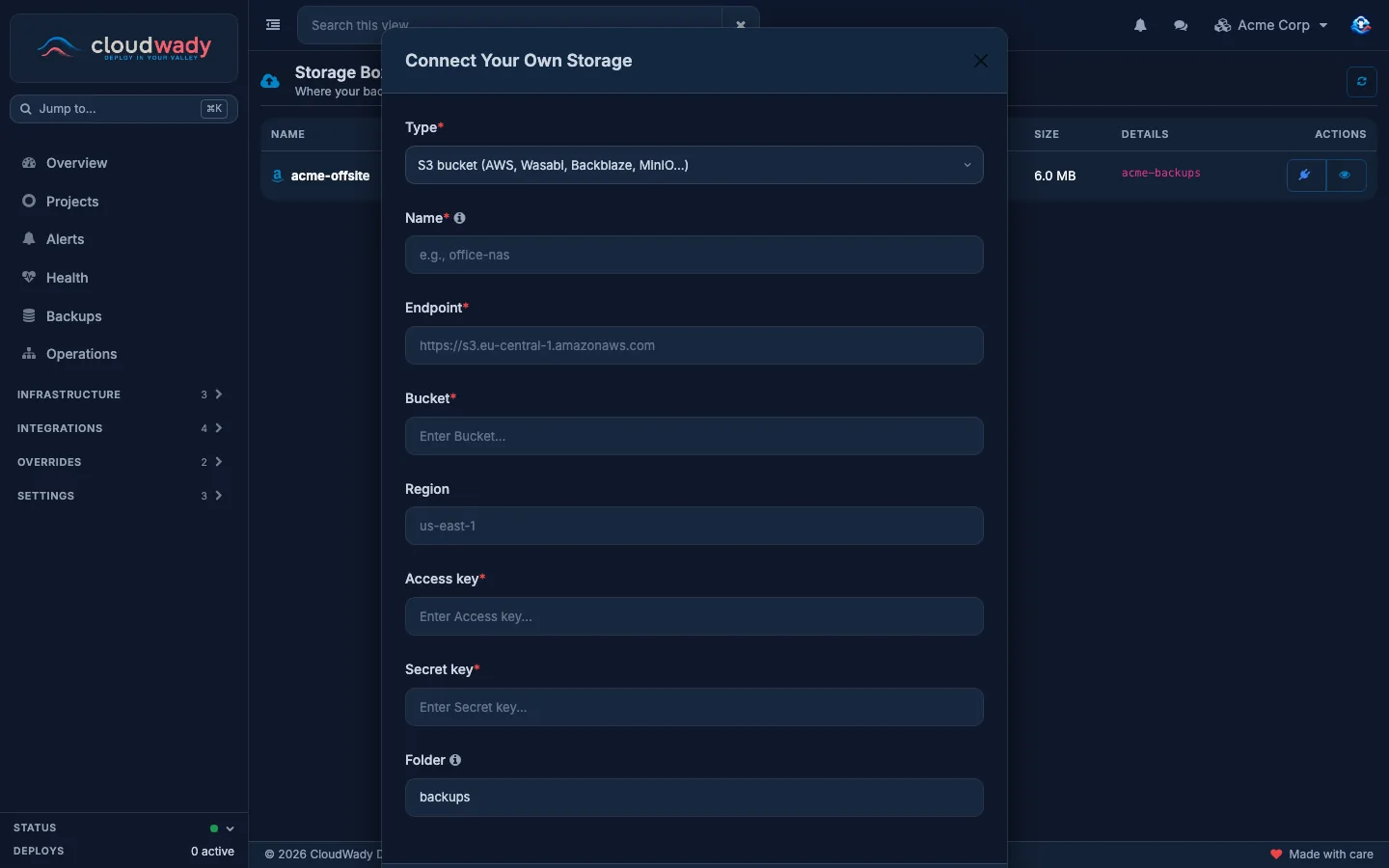
- Connect Your Own: an S3 bucket you already have (AWS, Wasabi, Backblaze, MinIO and other S3-compatible services) or an SFTP server. For S3, give the endpoint, bucket, region, access key and secret key. For SFTP, give the host, port, username, and a password or an SSH private key. Folder is where backups go: a prefix in the bucket, or a folder under the login's home. Test and connect uploads a test file and connects the storage only if that works.
- Add Storage: CloudWady makes the storage through one of your cloud providers: an S3 Object Storage bucket, an SFTP / Storage Box (a Hetzner Storage Box), or a Cloud Volume attached to a server.
Use it in a project
Open the project, then Storages. Register Storage picks one of your storages; switch on Primary Storage for the one a restore reads from first.
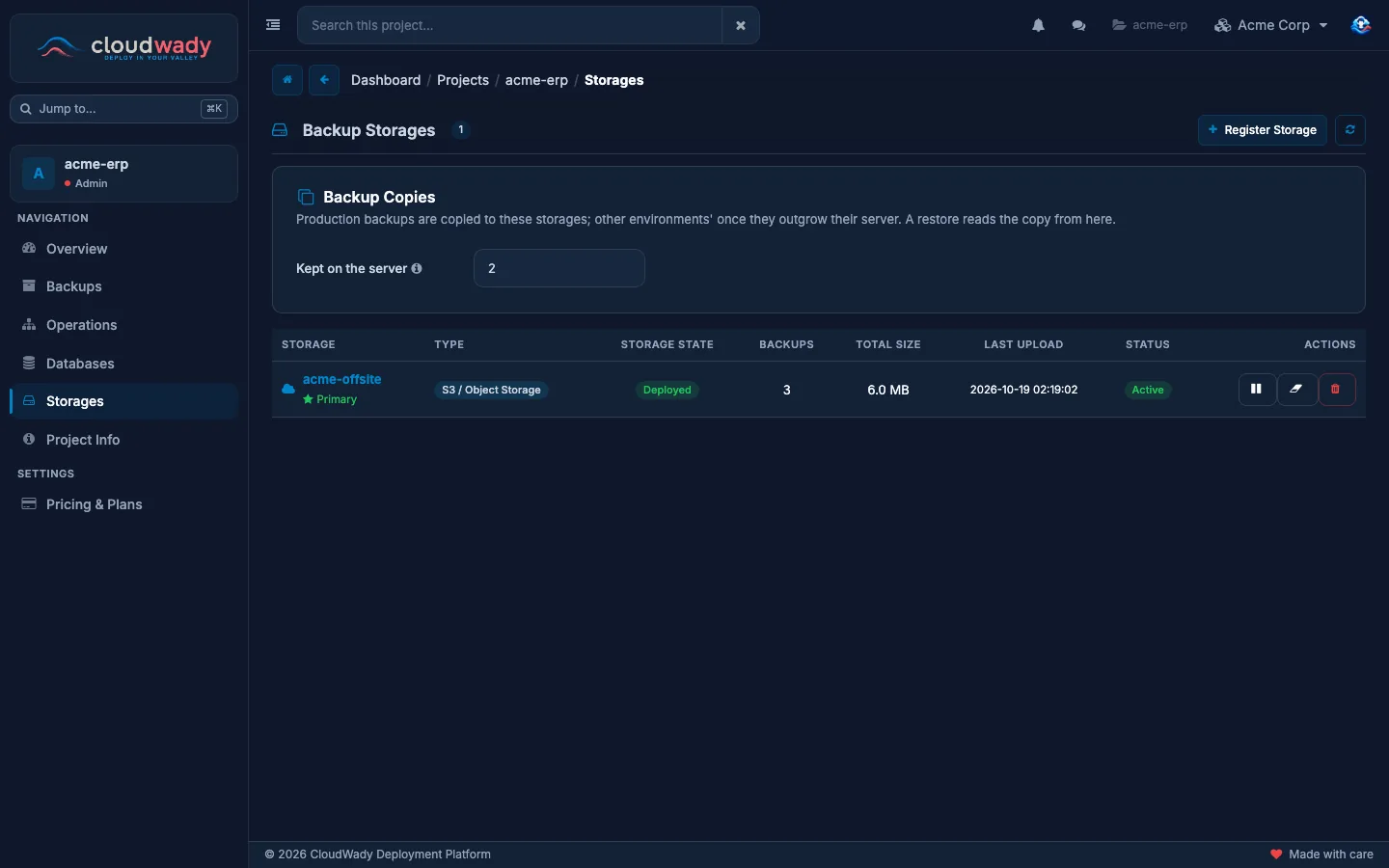
| Action | What it does |
|---|---|
| Set as Primary | Makes this the storage a restore reads from first. |
| Deactivate / Activate | Stops or resumes copying backups there. |
| Clean up old copies | Removes old copies from the storage. Admins only. |
| Remove from Project | Stops using the storage in this project. |
Backup Copies → Kept on the server sets how many of each app's newest backups stay on its server. Older ones then live only on the storage, and their card says Off-site only. 0 keeps them all on the server.
Copies on a backup card
When the project has storages, each backup card has an External storages part with one row per storage: its name, type and state, and the last error if a copy failed.
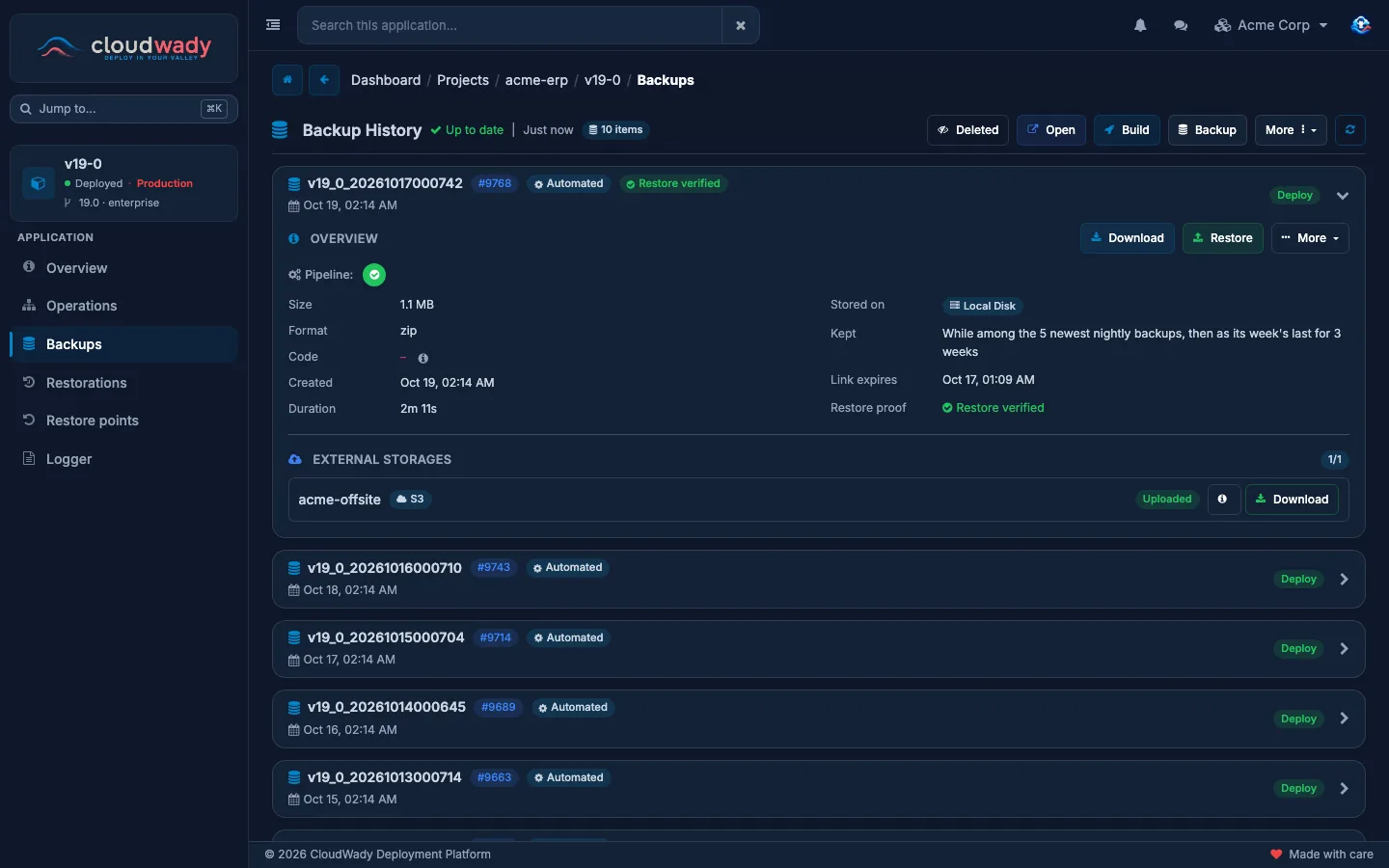
- Download gets the copy: from S3 through a one-hour link, from SFTP after the file is fetched back to the server.
- Upload, Retry or Re-upload copies the backup there.
- The info button shows the copy's details; the bin deletes the copy from the storage (admins only).
If an app's backups grow too big for its server, its Backups menu shows Backups need external storage, with a button that opens the project's storages.
Who can do what
What you may do depends on your access level and on the environment of the app (see Permissions & access).
| Action | Development | Staging | Production |
|---|---|---|---|
| See backups and restorations | Viewer | Viewer | Viewer |
| Take, download, retry or cancel a backup | Developer | Developer Plus | Maintainer |
| Restore into an app of this environment | Developer | Developer Plus | Maintainer |
| Delete a backup | Developer | Developer Plus | Maintainer |
| Change the Neutralize Database switch | Admin | ||
| Add or connect a storage (Infrastructure → Storage) | Maintainer | ||
| Register a storage on a project | Developer Plus | ||
| Clean up old copies, delete a copy from a storage | Admin | ||
Was this page helpful?
Your answer helps us prioritize documentation improvements.
Thanks — your feedback helps us improve.
Type to search titles and text.
↑↓ to move ↵ to open Esc to close