Projects & environments
Create a project, and work with its Production, Staging and Development environments.
Projects, environments and apps
A project is one Odoo system you run — your company's ERP, say, or one customer's. It is built from one Git repository and billed on one plan.
A project has up to three environments:
- Production — the live system your users work in.
- Staging — where you try a change on a copy before it reaches production.
- Development — where you build and test new work.
Each environment runs on a server and holds apps: the Odoo instances themselves, one per Odoo version and branch. How many environments and apps a project may have depends on its plan — the Free plan has one production app; paid plans add staging, development and more apps. See Billing & pricing.
Create a project
Creating a project takes the Admin role in your namespace. Before you start, connect a cloud provider (if you want us to create a server for you) and a Git provider — the Setup Guide walks you through both.
1. Choose a plan
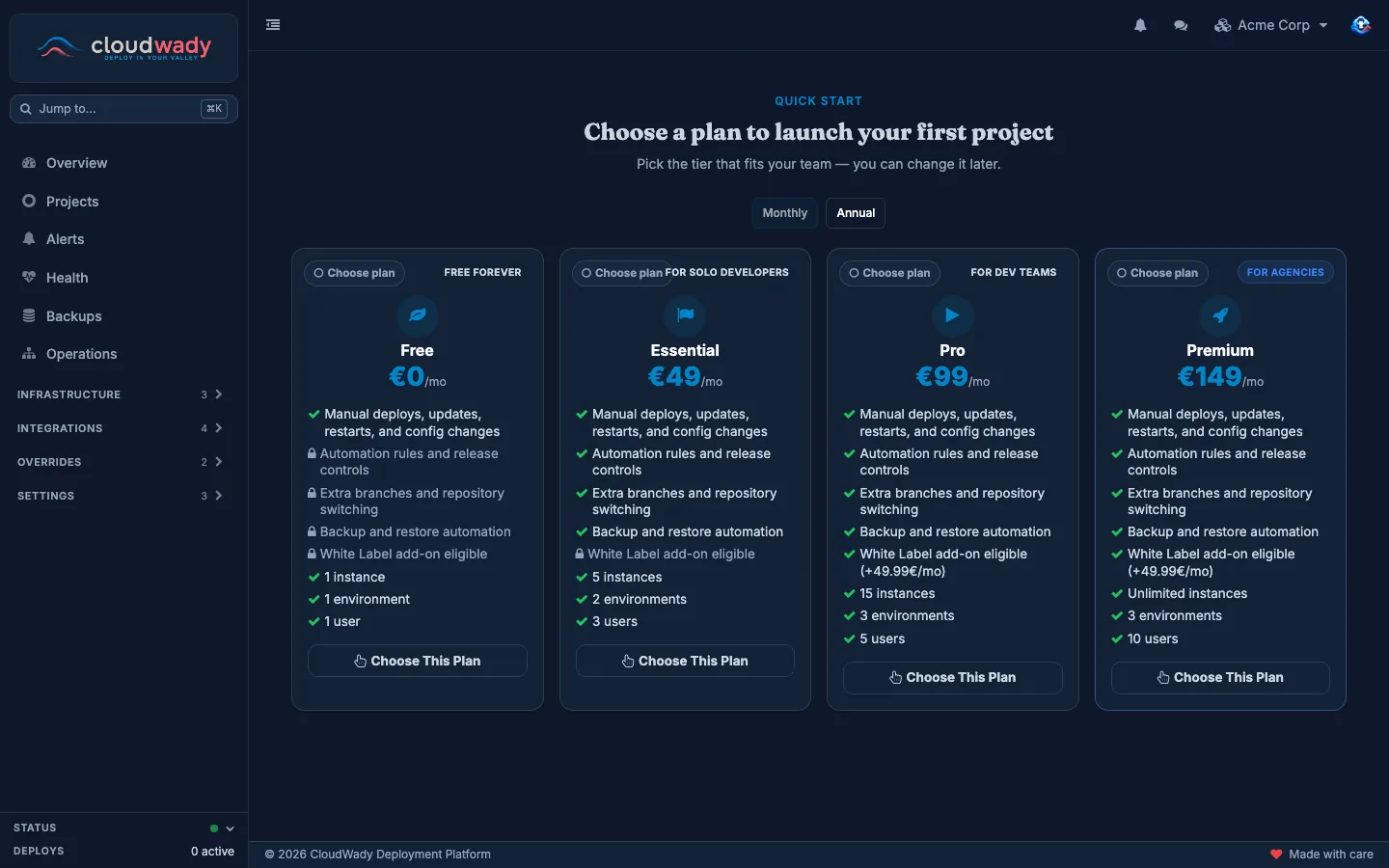
On the Overview or the Projects screen, click Create Project. The plan cards open: Free, Essential, Pro and Premium, each listing what it includes. Switch between Monthly and Annual prices at the top, then click Choose This Plan. You can change the plan later.
2. Fill in the three steps
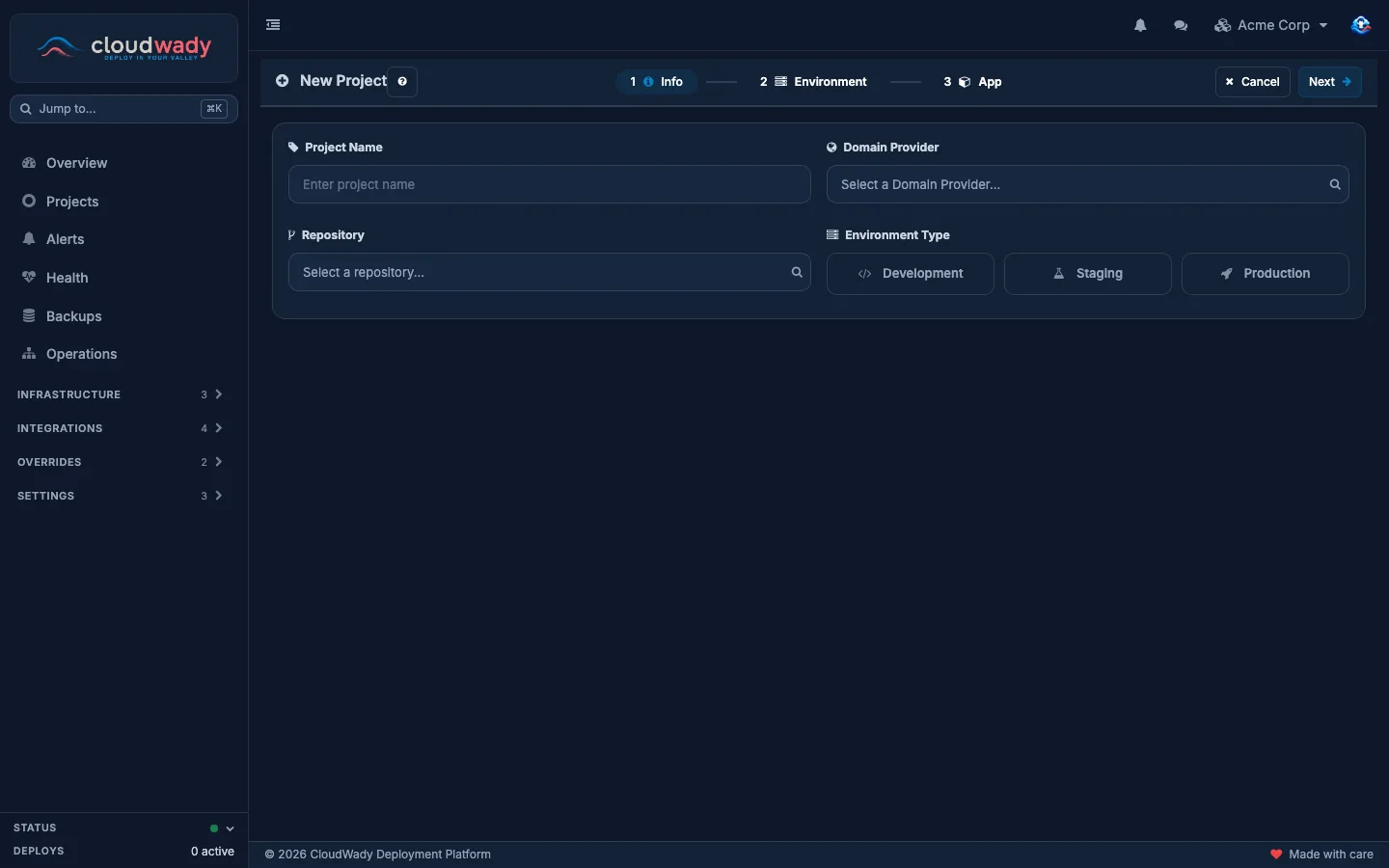
The New Project screen has three steps — Info, Environment and App. Click Next to move on, or Cancel to stop; nothing is created until the last step.
| Step | What you choose |
|---|---|
| Info | Project Name; the Repository your code is in; the Domain Provider that gives your apps their web addresses; and the Environment Type of the first environment — Development, Staging or Production. |
| Environment | Where it runs. Pick an existing Deployment Server — you see its size, region and image — or leave it empty and pick a Cloud Provider with a Server Size, Server Image and Server Region to get a new server. Under Database Configuration, pick the PostgreSQL Version. |
| App | The first Odoo app: its Prefix (its name), the Odoo Version and Edition, and the Branches to build it from — the first branch is the main one. Turn on No custom repository to run Odoo's own modules only. Advanced holds the installation options, which come from the environment's defaults. |
When you click Create, CloudWady creates the project and starts the work: the server if you asked for one, the database, and the app. Follow it under Operations; the first build takes a few minutes.
The project screen
Open a project from Projects or the Overview. Its own sidebar replaces the main one; the arrow at the top takes you back.
| Menu | What is there |
|---|---|
| Overview | The environments and their apps (below). |
| Backups | The backups of this project's apps (Developer and above, on a plan with backups). See Backups & restore. |
| Operations | Everything that ran for this project: Workflows, Runners and Queues. |
| Databases | The project's PostgreSQL databases: where they run and their state. |
| Storages | The off-site storages this project's backups go to. |
| Project Info | Info (name and code) and Configs (storage path, repository, domain provider), and the project's history. |
| Pricing & Plans | The project's plan, its billing period and its current installment (Admin). See Billing & pricing. |
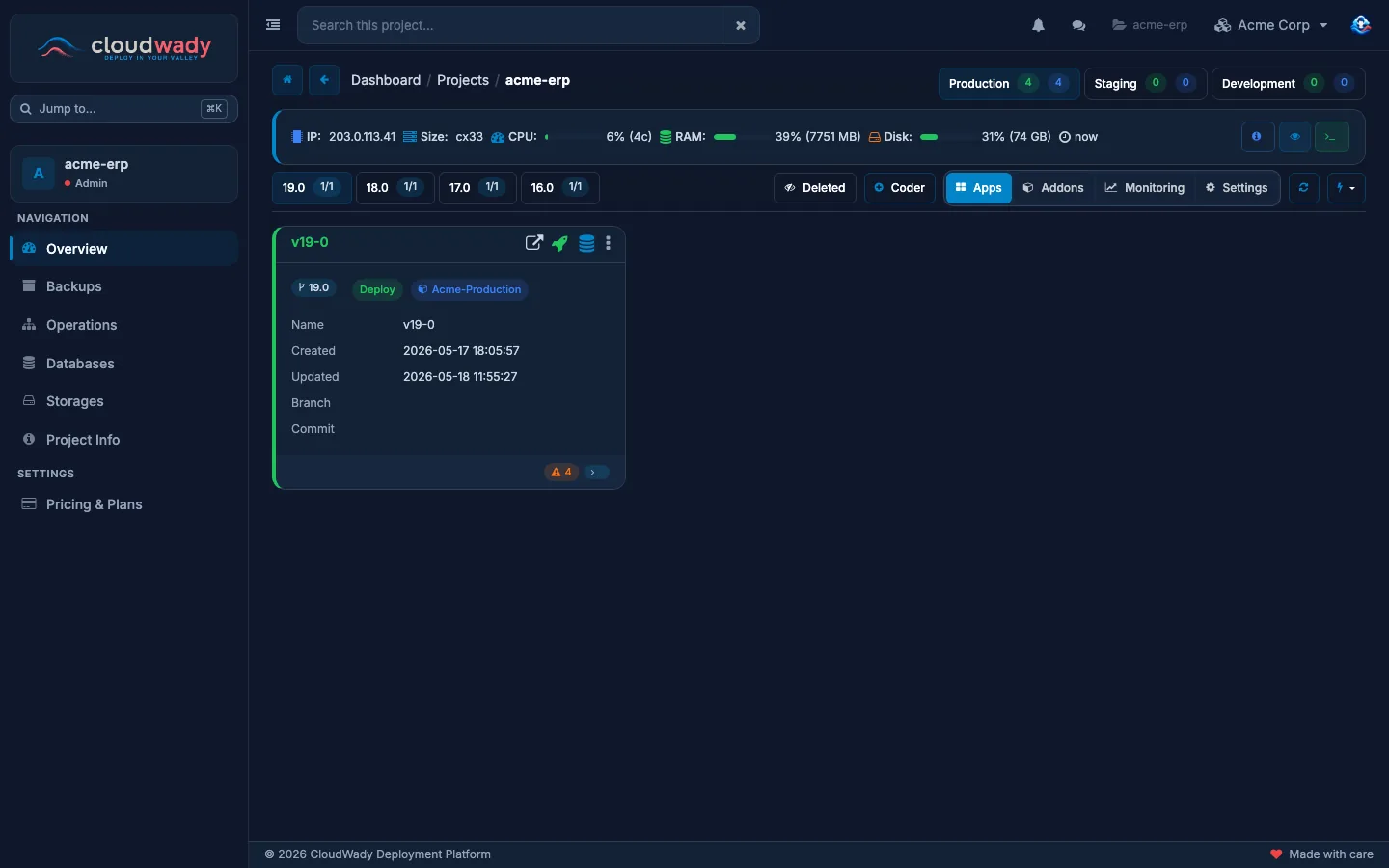
- The environment buttons — Production, Staging, Development.
- The server strip — the environment's server and how busy it is.
- The version tabs and the toolbar.
- An app card.
Working in an environment
Choose the environment
The buttons at the top right — Production, Staging, Development — choose the environment you work in. The green number is how many of its apps are deployed, the blue one how many it has.
The server strip
Below them, a strip shows the environment's server: its address, its size, and how much CPU, memory and disk it uses right now. Its buttons show the server's details and monthly cost, open the server's own screen, and open a terminal on it.
The toolbar
| Control | What it does |
|---|---|
| Version tabs (19.0, 18.0…) | Show the apps of one Odoo version, with how many there are. |
| Deleted | Show deleted apps too. |
| Coder | Open a code editor in the browser for this server. If Coder isn't installed there yet, the button installs it. |
| Apps / Addons / Monitoring / Settings | Switch what the environment shows: its app cards, its shared Odoo addons, its server's monitoring boards, or its settings. |
| Refresh | Reload the environment. |
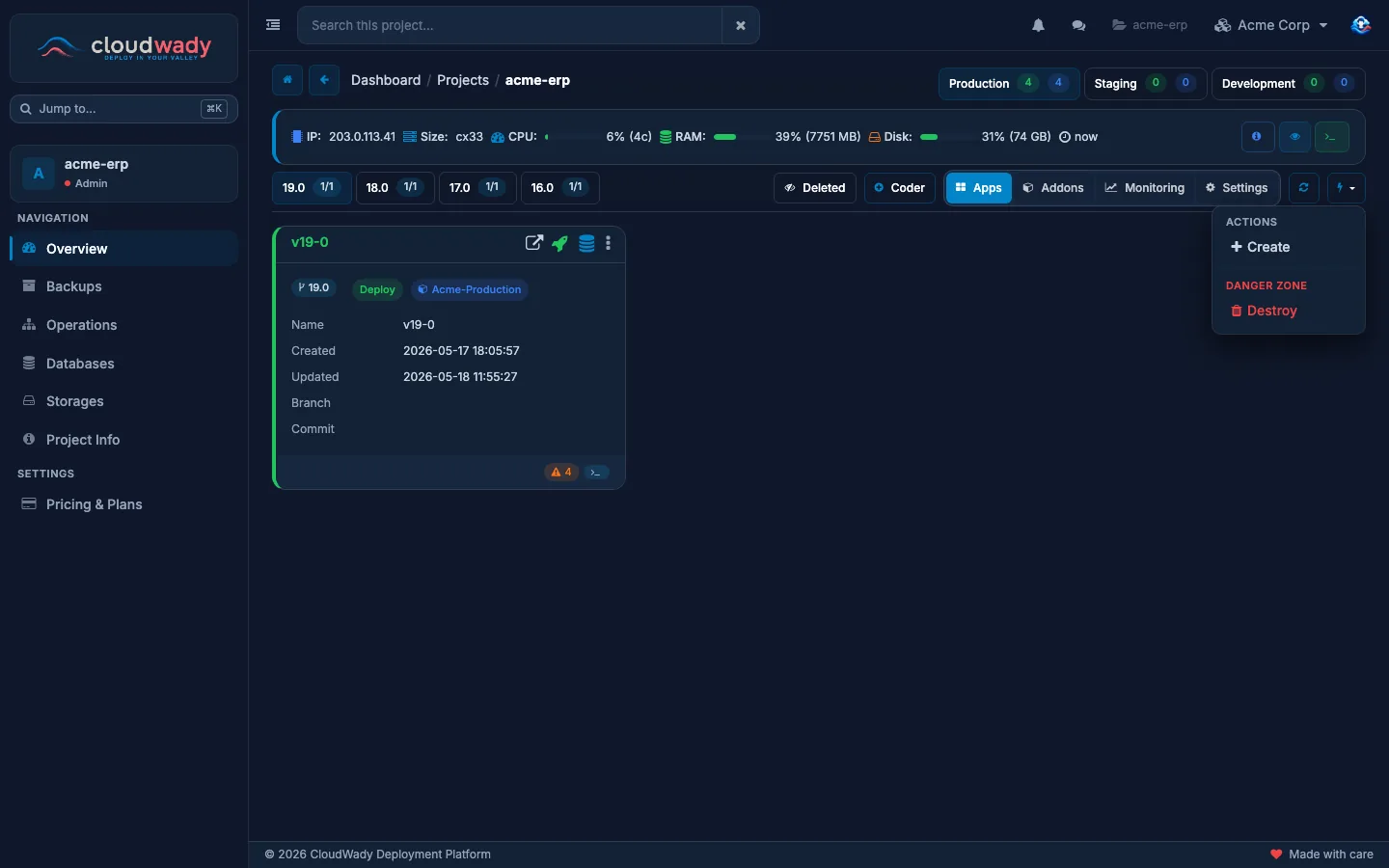
| Actions | Create adds an app to the environment. While the environment has no server yet, Automate Environment takes its place: it sets up the server, the database and the first app in one go. Under Danger Zone, Destroy removes the environment (below). |
App cards
Each app has a card with its name, its Odoo version, its state, when it was created and last updated, and the branch and commit it runs. The buttons at the top of the card open the app in your browser (), Build it () and take a Backup (); holds every other action. Badges at the bottom count the warnings and errors in its logs; click one to read them. Click the card's name to open the app. Everything you can do with an app is in Deployments & rollback.
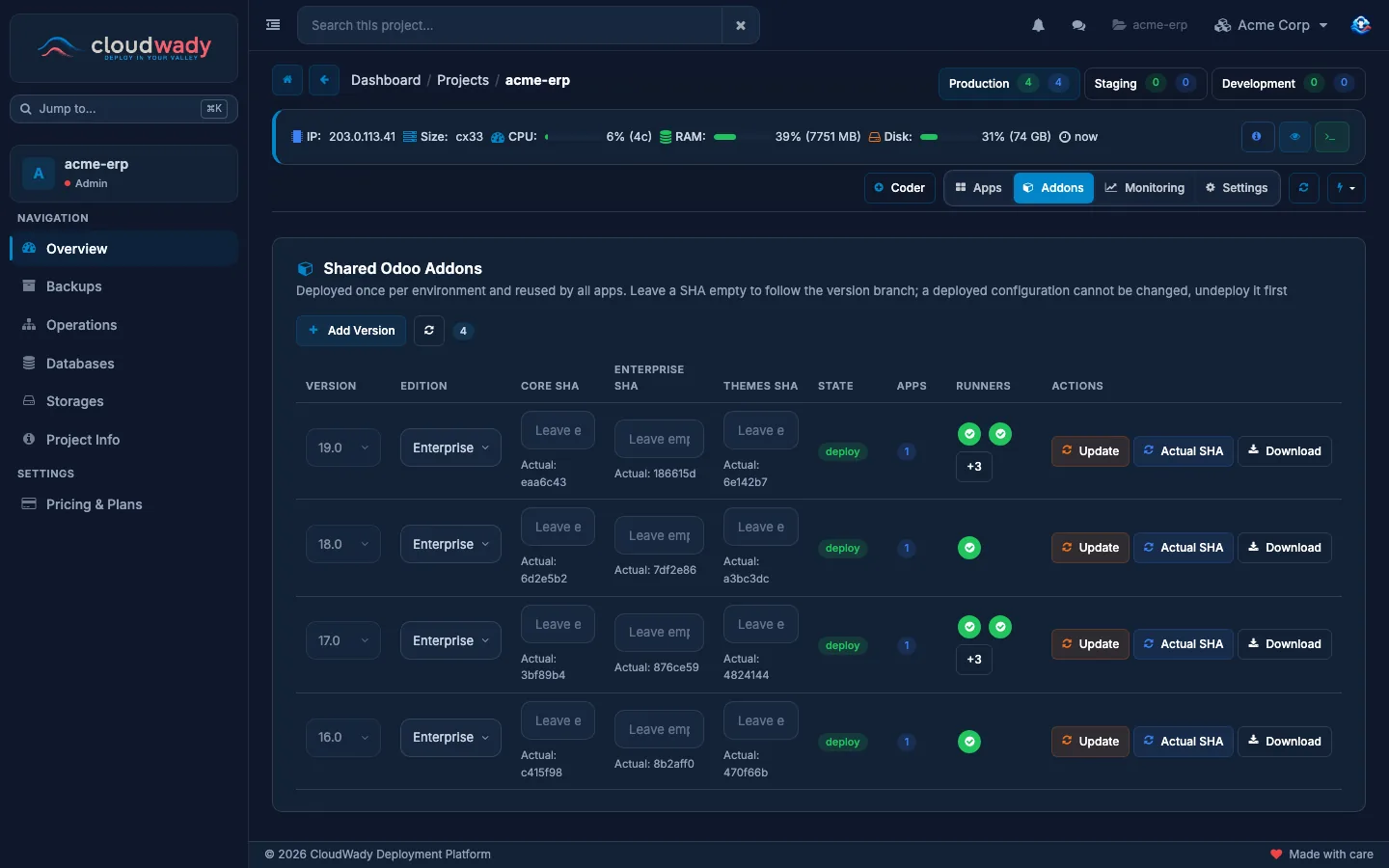
Shared Odoo addons
Addons shows the Odoo core, Enterprise and theme code each version of this environment uses. It is deployed once per environment and shared by all its apps. Leave a SHA empty to follow the version's branch, or set one to pin that commit. Update brings the code up to date, Actual SHA reads the commit the server really has, and Download gives you an archive of the Core, Enterprise or Themes code (after you confirm your password). A deployed row can't be changed; undeploy it first.
Monitoring
Monitoring shows the server's boards — CPU, memory, disk, network, containers — inside the dashboard. It needs a plan with advanced monitoring.
Environment settings
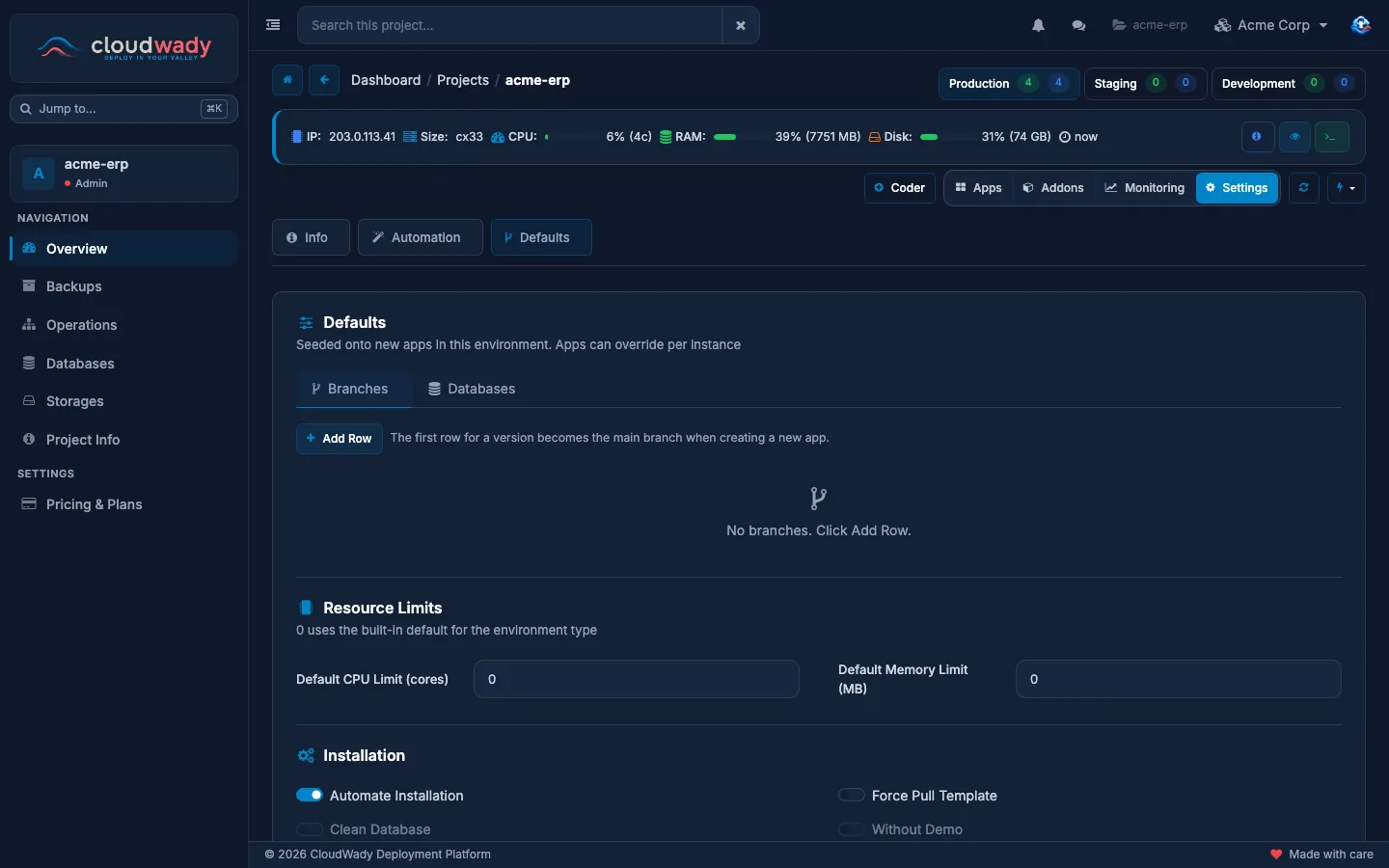
Click Settings in the toolbar. The settings have three tabs; each one also shows the environment's history.
| Tab | What you set |
|---|---|
| Info | Where the environment runs: its name, deploy method, database, repository and server. |
| Automation | What happens when a branch receives a push:
|
| Defaults | What new apps in this environment start with: the branches and databases for each Odoo version (the first branch of a version becomes a new app's main branch), Resource Limits (CPU and memory; 0 keeps the built-in default), the Installation options (install modules automatically, a clean database, no demo data) and, when automatic installation is on, the Quality Checks. An app can change any of these for itself. |
Who may do what
What you may do in an environment depends on your role in the namespace and on the environment: the closer to production, the higher the role it takes.
| Action | Development | Staging | Production |
|---|---|---|---|
| Create, build, update, back up or restore an app; change environment settings | Developer | Developer Plus | Maintainer |
| Delete an app | Developer | Developer Plus | Admin |
| Set up an environment (Automate Environment) | Developer | Developer Plus | Maintainer |
| Destroy an environment | Maintainer | Maintainer | Admin |
| Open a terminal on the server | Developer | Developer | Maintainer |
Creating or deleting a project and changing its plan take the Admin role. A Viewer can look at everything but change nothing, and doesn't see the run history. Your plan has a say too: setting up staging or development needs a plan that includes them. See Permissions & access for every role.
Destroy an environment
Open the environment's actions menu and click Destroy. For a production environment you confirm by typing DESTROY.
- If other environments still run apps on the same server, only this environment's apps, databases and web address are removed; the server stays.
- If not, the server itself is deleted, and everything on it with it.
Was this page helpful?
Your answer helps us prioritize documentation improvements.
Thanks — your feedback helps us improve.
Type to search titles and text.
↑↓ to move ↵ to open Esc to close